spinsamuraicasino Casino’s mobile app provides New Zealand players a standalone way to use games and account tools independent of a browser. The app is developed for Android and iOS devices, and it follows the same security standards used on the desktop site. This article outlines the concrete steps for starting out, the hardware and software requirements, and the main functions that vary from the browser version.
Supported Devices and Operating Systems
SpinSamurai Casino specifies Android 7.0 and iOS 12 as the base operating systems that can use the current app version. On Android, the installer file is 68 MB, while the iOS build is 74 MB; both sizes are presented on the download page before installation begins. Devices must also have at least 2 GB of RAM and 200 MB of free internal storage after the app is installed. Tablets are accepted, yet the interface remains optimized for phone screens, so some users choose to enable split-screen mode on larger devices.
New Zealand users on older handsets often check the Google Play Store or the Apple App Store first, but the app is distributed directly from the SpinSamurai site because it includes real-money gaming features. The site detects the operating system automatically and provides the correct package. If a device runs Android 6 or iOS 11, the app will not launch, and the site displays a notice recommending a system update.
Many users also check that their device meets the graphics requirements listed on the site. The app supports OpenGL ES 3.0 on Android and Metal on iOS, which guarantees smooth rendering of animated reels and live dealer video. Players with devices that fall short of these specifications may see reduced frame rates or occasional stuttering during bonus rounds. The site therefore shows a compatibility checklist before the download button appears, allowing users to verify their hardware before committing to the install.

Regional carriers in New Zealand sometimes bundle phones with custom firmware that alters permission settings. In these cases, the SpinSamurai site includes a short troubleshooting guide that details how to access the “install unknown apps” toggle inside the updated settings menu. The guide includes screenshots for Samsung, Google Pixel, and OnePlus devices, lowering the time needed to complete the first installation. Once the app is running, these permission changes remain in place for future updates.
Application Account Management and Safety Tools
The mobile app duplicates the full account settings found on the desktop site, yet several controls lie one tap away instead of nested in menus. Players can configure deposit limits, cool-off periods, and session reminders straight from the profile screen. These options synchronize instantly with the server, so a limit made on the phone also displays when the same account is used on a computer later.
Two-factor authentication is available through authenticator apps rather than SMS, minimizing the chance of interception on New Zealand mobile networks. The app holds no banking details; each deposit or withdrawal starts a secure web view that terminates the session after the transaction completes. If a phone is stolen, the account can be blocked from any other device by using the “freeze account” link on the SpinSamurai site, and the lock takes effect to the mobile session within thirty seconds.
Players can also view their full transaction history inside the app without changing to a browser. The history screen presents deposits, withdrawals, and bonus credits with timestamps exact to the second. Filters enable sorting by date range or transaction type, and each entry can be expanded to display the payment method used and any associated fees. This level of detail assists users verify their bank statements without connecting into multiple services.
Security logs are another feature specific to the mobile app. Every login attempt, password change, and device authorisation is captured with the IP address and approximate location. If an unfamiliar entry shows up, the player can cancel that session immediately from the same screen. The logs are stored for ninety days and can be exported as a CSV file for personal record-keeping or for providing with SpinSamurai support if an account issue happens.
Game Selection Interface and Search Functions
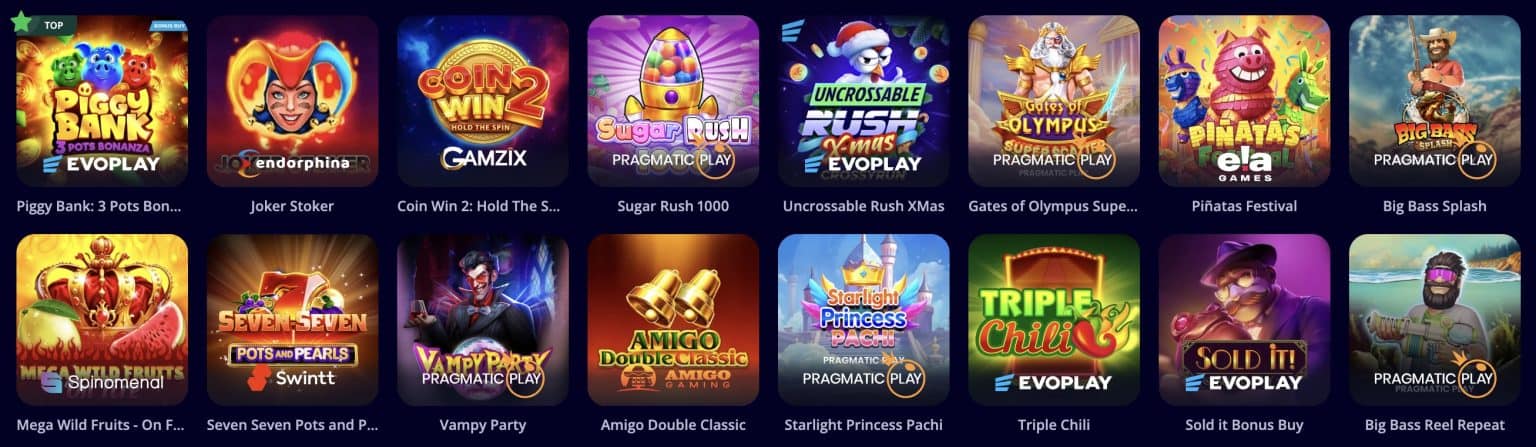
The game lobby opens to a grid of 180 titles sorted by category: slots, table games, video poker, and live dealer. A persistent search bar at the top handles game names or providers, and results show up after two characters are typed. Filtering options for volatility, RTP range, and jackpot size are tucked behind a single “refine” button, letting players to refine options without browsing every page.

Each game tile shows the provider logo, minimum bet, and current jackpot amount when applicable. Tapping a tile loads the remaining assets if they were skipped earlier, then launches the game in landscape mode. The app keeps track of the last ten games played and places them in a “recent” row on the home screen, so regular players can continue without hunting again.
The lobby also features a “favourites” row that players build by long-pressing any game tile. Once added, these titles remain in the row even after the app is closed and reopened. Players can rearrange the favourites list by dragging tiles, which is helpful for those who cycle through a small set of favorite games. The order is kept locally and synced to the server so that the same sequence shows up when the account is accessed from another device.
Search suggestions change in real time as the player types. If a game name has spaces or special characters, the app still provides relevant results by matching partial strings. For example, typing “mega” will surface any title that includes the word in its name or provider description. This fuzzy matching reduces the need for exact spelling and speeds up navigation for players who are uncertain about the full title.
Setup and Setup Steps for Android
Android users launch the SpinSamurai site in Chrome or Firefox and press the Android download button. The file arrives with the name SpinSamurai.apk. Before installation, the device settings must enable apps from unknown sources; this toggle is located under Security or Apps on most Samsung, Google Pixel, and OnePlus phones. Once the toggle is enabled, the user accesses the file manager, selects the downloaded apk, and confirms the permission list that includes storage access and notification rights.
After the install finishes, the SpinSamurai icon is visible in the app drawer. The first launch prompts the user to enter an existing account or create a new one. The app then retrieves additional graphics packs of about 120 MB over Wi-Fi; this step can be delayed, but most games will not load until the assets are available. If the device later undergoes an OS update, the app remains installed and only requires a new login.
Some users choose to move the downloaded apk to a microSD card before installation. The site therefore supplies a checksum value so that players can check the file has not been changed during transfer. If the checksum corresponds, the installation continues without interruption. Players who store the apk on external storage must still give the app permission to read from that location during the first launch, otherwise the graphics packs will not be able to download.
Network interruptions during the graphics download can result in the app in a partial state. The SpinSamurai site therefore includes a “resume download” button inside the app that resumes only the missing files rather than the entire package. This feature is especially useful for players on rural 4G connections where signal strength varies. Once the assets finish downloading, the app automatically verifies each file and starts the lobby without further input.
Download and Installation Steps for iOS
iPhone and iPad users take a distinct route because Apple does not offer real-money casino apps. The SpinSamurai site offers a configuration profile that registers the app with the device. The user taps the iOS button, checks the listed permissions, and deploys the profile under Settings, General, VPN & Device Management. After the profile is accepted, the SpinSamurai app icon becomes visible on the home screen and can be opened like any other application.
Each time the app is refreshed, the user receives an alert inside the app itself. The update process reiterates the profile step only if Apple has changed its signing certificate; otherwise, the existing profile stays valid. Players in New Zealand who use Family Sharing must temporarily turn off it, because shared devices prevent profiles from unknown developers. Once the app is running, Face ID or a six-digit PIN can be established for faster access.
The configuration profile also registers a secure sandbox that separates the app’s data from other applications on the device. This isolation prevents third-party keyboards or screen-recording tools from reaching sensitive information such as login credentials or transaction receipts. Players who later uninstall the profile will see the SpinSamurai icon be removed, but their account data remains stored on the server and can be accessed again by reloading the profile.
Some users note that iOS battery-optimisation features pause background downloads after the screen turns off. The SpinSamurai site therefore suggests disabling low-power mode during the initial graphics download. Once the assets are available, the app respects iOS background-refresh limits and only scans for updates when the phone is charging and connected to Wi-Fi. This approach ensures data usage predictable and eliminates unexpected charges on capped mobile plans.
Operation, Bandwidth Usage, and Power Effect
SpinSamurai records average data use at 1.2 MB per minute of slot play and 2.8 MB per minute of live dealer video. These figures assume default graphics settings; decreasing animation quality in the settings menu diminishes data by roughly thirty percent. On 4G connections in New Zealand regional areas, the app buffers live dealer streams for three seconds before play begins, after which the feed continues uninterrupted unless signal drops below -110 dBm.
Battery tests on a Samsung Galaxy S21 and an iPhone 13 demonstrate a drain of seven percent per hour of continuous slot play at fifty percent screen brightness. The app suspends all background downloads when the phone screen is off, preventing unnecessary usage. Players can also switch “low-power lobby” which eliminates live jackpots and animations from the main screen, reducing drain by an additional two percent per hour.
Network type also impacts performance. On 3G connections the app automatically lowers video resolution for live dealer tables to maintain frame rate, while on 5G it increases resolution when the device reports a strong signal. Players can override these defaults in the settings menu if they choose consistent quality regardless of network speed. The app stores the chosen setting and implements it on every subsequent launch until changed again.
Thermal throttling can happen on older devices during extended play sessions. The app checks the device temperature and displays a gentle warning when the phone reaches its thermal limit. If the warning is ignored, the app gradually lowers animation complexity rather than forcing a shutdown. This approach maintains the session running while protecting the hardware from heat-related wear.
Distinctions Among the App and the Desktop Version
The mobile app excludes the multi-window lobby view that desktop users view, because phone screens cannot display two games side by side. Instead, the app utilizes a swipe gesture to move between open games, with a maximum of four simultaneous sessions stored in memory. Desktop players are able to open an unlimited number of browser tabs, yet each tab uses its own data stream, so the app’s limit reduces total data use for users who change games often.
Push notifications are exclusive to the app. They alert players to scheduled maintenance, bonus expiry timers, and deposit confirmations. The desktop site transmits the same messages by email only. In addition, the app retains the last filter settings used in the lobby, whereas the desktop site resets filters on every new session. These stored preferences stay until the user empties the app cache or reinstalls the software.
Another contrast is the handling of live chat support. On the desktop site, the chat window can stay open in a separate tab while the player continues browsing games. The mobile app folds the chat into a floating bubble that can be shifted around the screen. Tapping the bubble expands the conversation, and swiping it to the edge reduces it again without closing the session. This design maintains the chat accessible yet unobtrusive on smaller screens.
The app enforces a single active session per account, whereas the desktop site enables concurrent logins from multiple browsers. If a player logs in on the app while already logged in on a desktop browser, the earlier session is stopped with a brief on-screen notice. This policy prevents conflicting actions such as simultaneous withdrawals from the same account and adds an extra layer of security for users who use together devices with family members.